Source Control Window disappears in Visual Studio 2012

2844.VS_tm_Purp526_rgb

A little weirdness with Visual Studio 2012 – the Source Control Window disappeared and nothing seemed to bring it back. I could open a solution from the Recent list, and open a file from the Solution, but still no Source Control Window would launch or display. And View -> Other Windows -> Source Control Window did nothing.

All until a colleague pointed out that, if you watched closely, it seemed like the window was loading, just not visible. So we tried Window > Reset Window Layout and all was well.

Drove me crazy for 15 minutes – and the simplest solution turned out the right one.
3G icon does not display on Telstra iPhone – no internet access

My son’s been moaning something about no 3G access on his Telstra iPhone for the last week or so, finally sat down to look today. He was right – the signal strength is fine, but no ‘3G’ symbol. And if you try to open a web site in the browser you see a ‘no internet access’ message.

I hunted around online and finally found this forum post. One of the remedies suggested is:

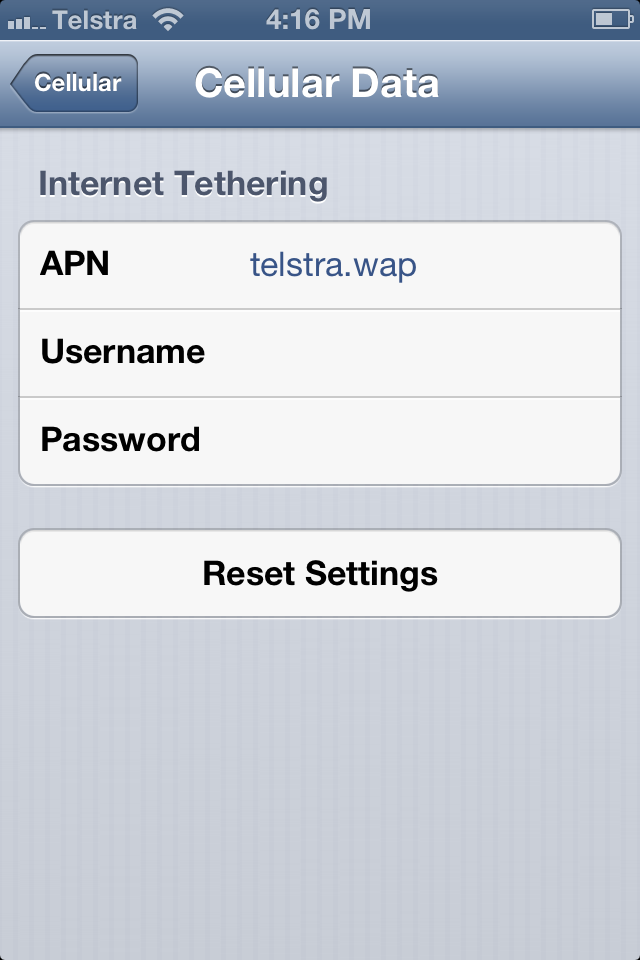
“go to settings – general – cellular – Cellular data network -and change APN from telstra.wap to telstra.iph”

I checked the settings and lo and behold:

telstra_wap

I changed the setting to telstra.iph:

telstra_iph

…then rebooted the phone. Now have the 3G symbol displayed, and data access when not connected to our wifi.

Son now much less grumpy with me.


How to syncronise bookmarks across different browsers on your computer

bookmark

This is a perennial problem for me, I often have multiple browers open – Firefox, Safari, and Chrome on my Mac, Internet Explorer in Windows (via Parallels), often because I need to be logged into the same website as different logins; or because I’m testing browser compatibility.

Chrome is my default browser – a major change I made a while back after Firefox just became too slow, although I still use it for debugging because of the indispensable Firebug.

I have several bookmark folders with lists of web site addresses I access constantly. But of course that’s in Chrome, so when I open up another browser I have to go back to Chrome, grab the URL, and paste it into the new window. All a bit tedious. Once or twice I’ve exported my bookmarks out of Chrome and imported them into the other browsers, but that’s not much chop as a plan.

The other day I came across Xmarks, software designed to keep your bookmarks in sync across all your browsers and devices (eg your computer, tablet, phone and so forth). I’ve installed the software in all my browsers, and it quietly syncs my bookmarks. If I add a bookmark in one browser, after a while it turns up in the other browsers – or if I’m impatient I can manually trigger a synchronisation.

I love tools like this, it might not be a problem for everyone, but for those of us who do need this functionality, Xmarks is the perfect solution.

Image: Enokson

Video: Wangaratta beer fridge animation

I received a lovely email overnight from the guys at TomoNews US – they’re part of Next Media Animation, the company that makes the fun Taiwanese animations.

They noticed my blog post about the beer fridge in Wangaratta interferring with the mobile phone network, they’ve made a cute video about the story!

Enjoy!

No honey, actually it’s NOT my speeding fine. Google Location History – bit creepy, pretty useful

google-latitude-cell-phone-tracker

I’ve just discovered the Google Location History page for my account, that tracks where I’ve been, based on my iPhone pinging Google on a regular basis. I can’t work out whether to be completely creeped out, or to shiver with excitement with all the ideas welling up around what useful applications you could build around the data. It’s actually been around for a while, it’s part of the Google Latitude product.

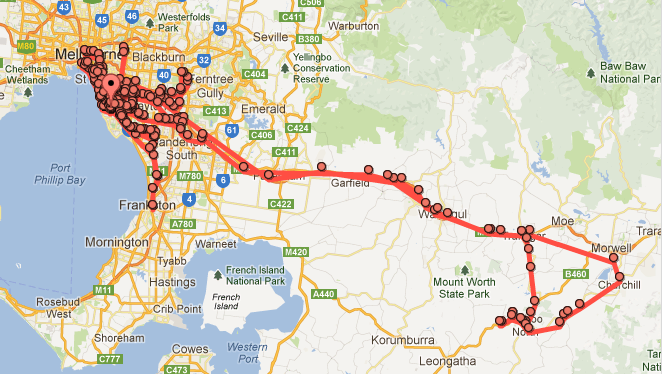
Here’s my map for the past 30 days:

Screen Shot 2013-05-28 at 5.37.03 PM

Big concentration of dots around the David HQ in Brighton. Couple of trips up to the northern suburbs (that’ll be sports games with my son); and a big trip down to the south east of Victoria, when we had a delightful day in the country, including stopping by the snail farm for some escargot.

Before you panic, this page is only available to you, not publicly, and you can delete the history at any time. To reach all this goodness, log into your Google Location History page. It’s possible to invite friends to access your Latitude data as well.

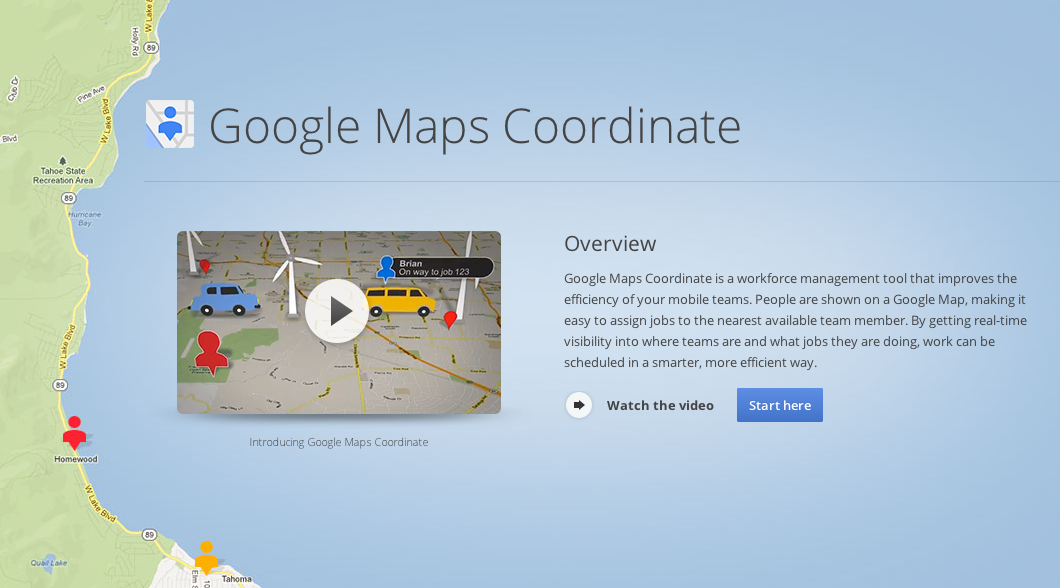
It had not struck me until I searched around a little, but an obvious application for this data is tracking company employees and assets. For example, Google has their own service via Google Maps for Business.

Screen Shot 2013-05-28 at 5.47.55 PM

Clearly there are security and privacy concerns around this data. It’s a little strange seeing my travels mapped with such accuracy. And of course there are the positive tales, like stolen property being recovered using Latitude data.

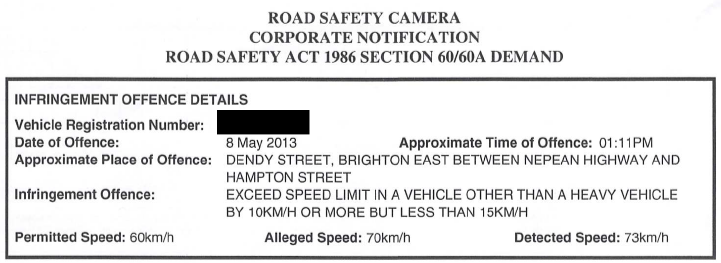
However, here’s the really neat stuff, look what turned up in our mail today:

speed-fine

Yes, oops. Someone was a little over the speed limit earlier this month, there was some debate in our household who this might have been, neither of us could recall who was out and about on Dendy Street at lunchtime on 8 May. I decided to fall on my sword and sign the form and accept responsibility – and the demerit points.

But now I’ve checked Google Latitude, here’s my map for the day:

dendy-street

Dendy Street is up the top – I never went near there, at least not with my iPhone in my pocket, and it’s a rare time I leave the house without my phone. Not sure this is worth broaching with @FionaK, so I’ll cop to the fine anyway.

I’m liking my 40 times faster internet access – please don’t cap me at 25Mbps Mr Abbott

1billion-miles-per-hour

A nice man from BigPond turned up today and installed cable internet for us, so we now have both cable and ADSL internet connected at home. I’ve been running tests using speedtest.net and the difference is remarkable.

Our ADSL is supposed to be ADSL2+, the fastest available, here’s our speed test result (with my Mac connected via ethernet).

bigpond-adsl

And here’s the cable result (with my Mac connected via wi-fi, not even ethernet).

bigpond-cable

The iPads are running around 40Mbps, iPhones around 17Mbps, not quite sure why the phones are a little slower, but to be frank it’s still a lightyear improvement.

The gamers, YouTubers, Apple TVers and other bandwidth sucks in my house are going be like pigs in clover.

Oh, and just to make the political point – I for one am not interested in the slightest at the idea of a maximum of 25Mbps as proposed by the Liberal opposition. Even if my cynicism about the TV lobby is unfounded. Let’s do a count of what devices are online right now (I can hear some of them from my study), by my reckoning:

  • 3 iPhones (including me checking Twitter to avoid working)
  • 3 Macs (including me trying to get some work done)
  • 2 iPads (I hear at least one playing Hi-5 YouTube clips)
  • Playstation with Call of Duty in full battle

And this is a lighter than normal load, our eldest daughter, one of the major net consumers, is not here. Whilst there’s no question we are a geeky household, nobody can tell me we are particularly out of the ordinary these days. Why on earth you would introduce such a low ‘cap’ on the nation’s ability to access the internet is beyond me.

Image: jpctalbot

Backing up from Mac and Windows (Parallels) to Dropbox

dropbox-feature

I’m away from home at the moment, hanging in San Francisco for a few weeks. All lovely and well, however, everyday my MacBook Pro is not connected to my 2Tb external drive and TimeMachine doing its thing every hour I lose another few hours from my life. Particularly having recently enjoyed major calamity with an OSX update that necessitated most of a day perched at the local Genius Bar to repair.

What I *really* need is the ability to backup sets of files each night to my Dropbox account. It’s not TimeMachine of course, but a daily backup of key work files goes a long way to alleviating my anxiety.

Tonight I sat down to make this happen – and discovered how easy it was. The key to all this, whether Mac or Windows, is that whatever you want to be on Dropbox needs to be in the Dropbox folder on your computer. So the trick is how to copy or syncronize your work files over to the Dropbox folder at regular intervals – eg once a day.

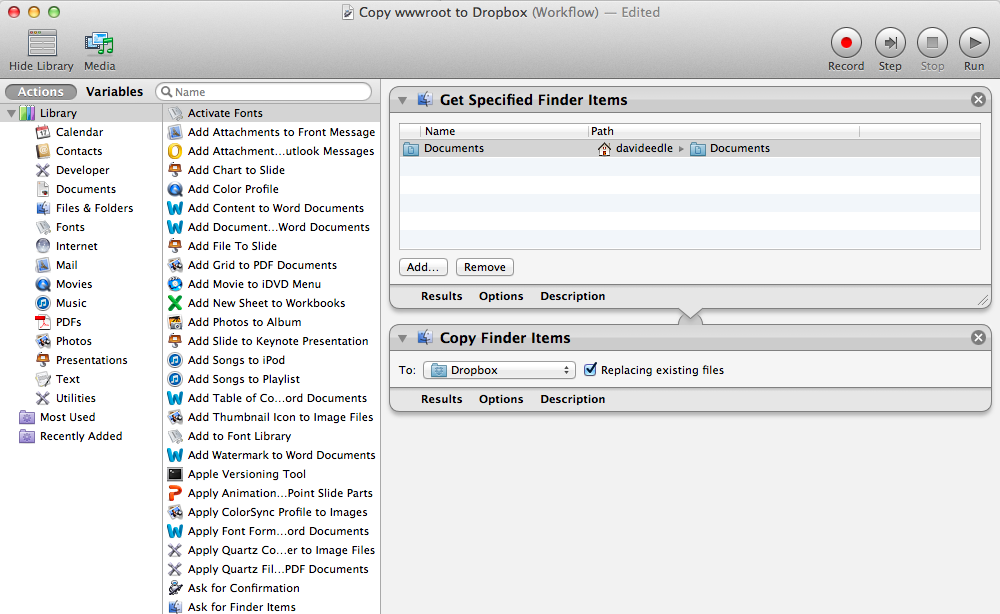
The Mac solution involves using that Swiss Army Knife – the Automator. Along with Preview this has to be one of the handiest gadgets tucked away on your Mac that I suspect the majority of users never touch. Here’s an article explaining how to use Automator to create and schedule a workflow that will copy any files you like from anywhere on your Mac into your Dropbox folder.

Screen Shot 2013-03-11 at 10.35.11 PM

I have Windows 7 running in Parallels on my Mac. Very few of the files in the Windows drive are irreplaceable. Almost all of them are part of code bases, and thus part of source control – either TFS or Github. Which means, on the whole, they exist somewhere else in the cloud. But some, even if in source control, I prioritise highly because they consitute key property that I’d *really* hate to lose. So a copy in Dropbox lets me sleep a little sounder.

My discovery of the day? Microsoft SyncToy, a free tool that can keep two folders on your computer in sync. I followed the instructions in this handy blog post and was up and running in no time.

On the left I chose the local folder on my Windows C:. On the right I chose my Dropbox folder on my Mac hard drive.

Screen Shot 2013-03-11 at 10.22.12 PM

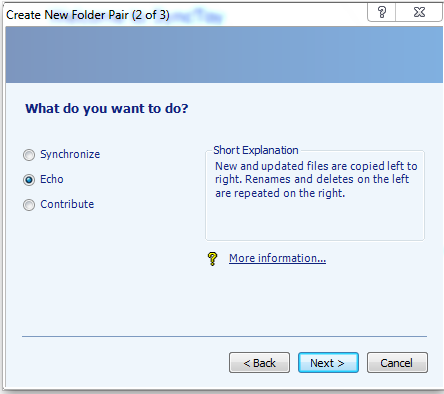
I did ponder the sync options for a moment. ‘Synchronize’ means it’s going to keep the folders in exact sync – so if something happens to my Dropbox folder – like I have a glass of wine too many and decide to do some pruning, it could reflect back to the original files. Instead I chose ‘Echo’ – that’s a one way street, pushing file changes to the DropBox folder, which makes sense to me for the task at hand.

Screen Shot 2013-03-11 at 10.22.02 PM

You can use Windows Task Scheduler to automatically fire the sync action.

I have a nice and fast Comcast cable connection in the San Francisco apartment, so the initial push of all the files up to DropBox didn’t take that long. I pay $9 a month for the 100Gb storage option, so unlikely to run out of space in the near future.

Convert decimal/dotted IP number to hex string

I had need today to pull a bunch of IP numbers from a database and return them as hex strings from a query to my code. It took a little messing, but finally figured out a solution.

DECLARE @b varchar(30) SET @b = '64.233.160.0'

SELECT 
RIGHT(CONVERT(varchar(max), CONVERT(VARBINARY(4), CAST(PARSENAME(@b, 4) AS int)), 2),2)
+
RIGHT(CONVERT(varchar(max), CONVERT(VARBINARY(4), CAST(PARSENAME(@b, 3) AS int)), 2),2)
+
RIGHT(CONVERT(varchar(max), CONVERT(VARBINARY(4), CAST(PARSENAME(@b, 2) AS int)), 2),2)
+
RIGHT(CONVERT(varchar(max), CONVERT(VARBINARY(4), CAST(PARSENAME(@b, 1) AS int)), 2),2)

The above returns ’40E9A000′. Breaking it down:

— gives me the first octet as an integer

CAST(PARSENAME(@b, 4) AS int)

— converts the integer to a hex literal

CONVERT(VARBINARY(4), CAST(PARSENAME(@b, 4) AS int))

–converts the hex literal to a string

CONVERT(varchar(max), CONVERT(VARBINARY(4), CAST(PARSENAME(@b, 4) AS int)), 2)

–grabs the right hand 2 characters of the hex string

RIGHT(CONVERT(varchar(max), CONVERT(VARBINARY(4), CAST(PARSENAME(@b, 4) AS int)), 2),2)


Classic ASP – maintaining sessions between secure and non-secure pages

If you use secure (SSL) and non-secure pages on your IIS-powered web site, and are using session variables to hold information about your users, you most likely will find those session variable values disappearing as your user switches from non-secure to secure pages – for example, they are in your online shop, and then click to Checkout and Pay.

The problem is IIS – by default it creates a new sessionId for users when they hit the SSL pages – so any session values you already created against the non-secure page sessionId are lost.

It’s easy to fix, in IIS7 anyhow. In IIS go to the properties for your web site and open the ‘ASP’ properties page. There is an option down the bottom entitled ‘New ID on Secure Connection’. By default this is set to True. Change it to False and click the Apply link.

https_session

Switching between SSL and non-SSL can also be a reason users experience a time out, or seem to be automagically logged out in the middle of something.

How to refresh Facebook’s cache of your blog post when you update

facebook

Came across this handy little trick the other day to refresh the Facebook cache of your web page or blog post. We all know that when you paste a link into the  status box on your Facebook page it goes away and grabs information from the URL, the title, summary and one or more images that you can then select to use as the thumbnail for your Facebook post.

But what happens if you update the blog post or web page? For example, I wrote a blog post, and pasted the URL into Facebook. Before I clicked the Post button I realised I had not added an image to the blog entry. So I went back and uploaded an image, then returned to Facebook and paste the URL again. Except Facebook didn’t show the new image.

The problem is Facebook caches the URL – so the second and subsequent time you paste the URL it is not retrieving a fresh copy, simply relying on the previously scraped information.

The quick way around this is to force Facebook to scrape the URL again. Go to the Facebook Debugger page,  paste in your URL and click the Debug button.

The Facebook Debugger page can be used to force a cache refresh.

The Facebook Debugger page can be used to force a cache refresh.

Then go back to your Facebook status update and paste the URL again there. Facebook should now display the latest version of the URL.