Drag and Drop stops working on Mac Lion

Strangest thing. I rebooted my Macbook Pro this morning. And discovered dragging and dropping files was broken. I could select a file and drag, but when I released the mouse button the file would not drop. The mouse icon remained displaying the file name.

Clicking escape seemed to release the file. I rebooted again. Still not working. I turned my Magic Mouse on and off, disconnected from bluetooth and re-paired. Still not working. Checked the track pad on the Mac itself, same problem. So it's not a Magic Mouse issue. Nor, one presumes with the mouse drivers given it's an issue with both the external mouse and the inbuilt track pad.

A Google search shows I'm not alone, this is a quirk of Mac OSX, occurs at random. Various solutions offered including deleting your mouse preferences or Finder preferences files.

And the fix is equally strange and random. Put your Mac to sleep and wake it. Worked for me.

Reseed a SQL Server identity column

We all use them. But confess rarely need to change the seed on an identity colum in SQL server. Or if I do, it's probably going to happen via dropping and recreating the table. But once in a while it's handy to be able to change the seed.

How do I… Reseed a SQL Server identity column?

DBCC CHECKIDENT
(
tablename
  [, [NORESEED | RESEED [, newreseedvalue]]]
)

Is something I'm tucking away in my goody bag for another day.


Beware Service Packs for Windows Vista under Parallels

A word to the wise, beware installing Service Packs for Windows Vista running as a virtual machine under Parallels on your Mac.

I wanted to upgrade my Internet Explorer from 7 to 9 the other day, but the installer said I needed to install Vista Service Pack 1 and 2. So I dutifully downloaded them, and installed SP1. Vista rebooted…except it didn't. It hung with the DOS screen saying something like '!! 0xc0190036 !! 5612/68495'

I Googled. Bunch of links (I'm not the first clearly) like:

Vista won't boot after Service Pack 1 installation – Vista Help

SP1 Fails: Message: !! 0xc0190036 !! – Vista Forums

Vista won't boot windows after SP1 update – PC Help Forum

Vista won't start after attempt to install Service Pack 1 – Microsoft Answers

Black screen on reboot during install, !! 0xc0190036 !! 4068/72408 (cdosys.dll.mui) flashing onscreen

All sorts of advice, which mostly wind up falling back to the old 'clean install' recommendation. Gotta love an operating system that the most common piece of advice to fix it is 'turn it off and turn it on', and the second most common is 'just install Windows again'.

I took the absolute chicken way out because I didn't feel like wasting a day of my life frigging around with some esoteric driver/DLL/system program thingy from my Vista install. So I went and bought Windows 7. I've spent 3 years living with the mistake of installing Vista on my Parallels when I could have easily enough dropped in a copy of XP. Then again, I could have got up off my behind and upgraded to Win7 ages ago, so I pay the price for laziness, or lack of a spare day in my life to install Windows, plus all my Visual Studio/SQL etc tools.

Anyhow, Windows 7 installed without a hitch into a Parallels virtual machine. Interestingly the VM takes up just over half the space of Vista – Vista was a little under 50Gb, as of today Win7 is chewing up 25Gb. I don't store any data on the VM other than cloud-based synced files – for example Team Foundation Server source control files. Everything else is stored outside the Parallels VM so it will backup via Time Machine. And I have exactly the same software installed other probably a few utilities, certainly not enough to explain a nearly 25Gb difference.

Must say, Win7 is chugging along way faster than Vista ever did. So the pain was probably worth it after all.


Using SSL on your localhost for web site development

SSL is a fact of life for virtually every web developer, and crucial if like me you work on ecommerce projects on a daily basis. Of course we all have an SSL cert on our development and staging servers, along with production, but what about your localhost machine? Wouldn't it be good if that was running SSL as well? And so you can:

Tip/Trick: Enabling SSL on IIS 7.0 Using Self-Signed Certificates

This came up for me because a) I was dealing with a problem that was only evidenced under SSL; and b) because I recently had to do a clean Windows install I'd lost my previous self-signed certificate in IIS7.


Mac Spotlight Search stops indexing local hard drive

Spotlight is one of the ultra-great things about Macs, I run Windows7 as well, and Windows search is completely useless in comparison. Takes forever, never seems to find what you want and generally seems redundant. Spotlight by comparison, with its predictive typeaheads and lightening speed almost invariably locates what I'm after.

However Mac Spotlight search was starting to piss me off yesterday, I was searching in my Mac Mail for a keyword and no results were returned. I tried a few combinations, then realised it was nothing to do with my keywords, I simply wasn't seeing any search results at all.

The text search in Mac Mail is powered by Spotlight, so I tried the same keywords in my Spotlight search box – no results. So I experimented some more and deliberately gave Spotlight keywords of files on my Desktop. Again no results.

Yet for some keywords I WAS seeing results come back – and I finally twigged, they were all files from my external hard drive where I archive things I'm not currently working on.

It became apparent that Spotlight was not returning any search results at all from my local hard drive.

I hunted online. All of the available advice was that the Spotlight index file for the drive needed to be deleted, then Spotlight would be forced to re-index. Also, as a precaution, many people suggest running Disk Utility and doing a permissions repair – which I did, although that by itself did not kick Spotlight into action.

So, if you are happy using Terminal, here's what I found worked for me. Please bear in mind I'm using OSX Lion 10.7.2, I don't know if the location and file name for the Spotlight index is the same on other releases.

In terminal make yourself super user:

david-eedles-macbook-pro-4:~ davideedle$ sudo -s

You should be at the bash prompt.

Change to the directory where the index is located (don't forget to escape the spaces):

cd /volumes/Macintosh\ HD/.Spotlight-V100/

Note your HDD might have a different name. Mine is 'Macintosh HD'.

Now kill the file:

rm -rf Store-V1

I rebooted, and Spotlight started to index the drive. This morning my searches are absolutely fine. I have no idea why Spotlight decided to forget there was a drive inside my MacBook Pro and only index the external drive.

If you want to locate the file in Finder you'll need to turn on showing hidden files. I use the handy TinkerTool for tasks like this.


SQL Server 2008 Database Mail Failed

Had one of those ‘how weird’ moments today. We seemed to not be sending emails from a web site I look after. We’re using SQL Server 2008, and the terrifically handy Database Mail service.

I originally set this up, using instructions I found in a well explained blog post ‘Installing and Configuring Windows Server 2008 SMTP‘.

When I checked the Database Mail logs I found a bunch of errors saying:

The mail could not be sent to the recipients because of the mail server failure. (Sending Mail using Account 1 (2011-03-25T18:13:13). Exception Message: Could not connect to mail server. (No connection could be made because the target machine actively refused it 127.0.0.1:25).

Which seemed odd. So I tried a simple Telnet localhost 25, and received connection refused. Which made me wonder where the SMTP service had gone.

I checked the Features list in Server Manager, and the SMTP service was showing – so I definitely wasn’t hallucinating that I had originally installed the service (it’s not installed by default).

I tried sending a Test Mail (right click on Database Mail in SQL Server Management Studio, then used the following to check the send log and the error log:

SELECT * FROM msdb.dbo.sysmail_allitems WHERE mailitem_id = [test mail id]

SELECT * FROM msdb.dbo.sysmail_event_log WHERE mailitem_id = [test mail id]

And it showed as failed, with the same error message I’d been seeing in the logs. Then I opened IIS6.0 – the SMTP service was not showing.

Checking the logs showed the emails starting to error on a specific day. Which makes me wonder whether someone else on the team has been messing around the on the server.

I decided to try and reinstall, so I used Remove Feature in Server Manager to remove the SMTP service, then Add Feature to reinstall, and then again followed the instructions in the above blog post – which is really just about ensuring you’ve set Relaying for the localhost, so the SMTP service will accept emails from the SQL Database Mail service.

A test email went through fine. And trying functions on the web application showed emails sending fine as well.

So I have a little bit of a mystery. SQL Database Mail was all fully installed and operational. But the SMTP service seemed to have disappeared, or somehow been changed. Think I had better ask around to see who has been doing what.


Scheduled Tasks Failing to Fire VBS Scripts

I have a Windows Server 2003 box with a bunch of scheduled tasks that fire VBS scripts through the day, handling various maintenance, data import and other jobs for a client's web site.

Over the past few days I noticed the jobs were not firing, and after a fair bit of research I finally found a solution.

The first clue came when I tried to call the VBS scripts directly in the command prompt, and received the following error message:

cscript error loading your settings failed access is denied

Which seemed a strange error given I was logged in as a user with Administrator permissions.

After a little more poking around I noticed two more oddities:

1. The Start Menu didn't look right – for example, the Accessories folder didn't contain many of the shortcuts I'd grown used to

2. The Documents and Settings folder contained duplicate user profile folders, for example:

– [username]
– [username].[machinename]
– [username].[machinename].000
– [username].[machinename].001
– [username].[machinename].002

all the way through to

– [username].[machinename].012

I also noticed in my command prompt window that I appeared to be logged in under the '012' profile.

I found this article that pointed the way:

http://support.microsoft.com/?kbid=314045

I searched the Registry for the ProfileImagePath key and found it was set to:

%SystemDrive%\Documents and Settings\[username].[machinename].002

I changed it to:

%SystemDrive%\Documents and Settings\[username]

I logged off, and logged back on again, and this time I was logged in with the [username].[machinename] profile – confirmed by opening the command prompt:

C:\Douments and Settings \[username].[machinename]>

I then tried to call the VBS scripts in the command prompt and they worked fine. Then via Scheduled Jobs window. Again all ok. And my Start Menu is back to normal as well.

As a sidebar I've noticed that the duplicate user profile folders were all created over the space of a single day – Christmas Day. Which is strange because I know that on Xmas Day I wasn't hunched over a computer RDCing into web servers, rather I was enjoying a day off with my family. The duplicate folders were all empty (eg they didn't have the normal complement of folders such as My Documents, Desktop, Favourites and so forth). All except the last one, 012. But that was the one I was logged into. So somehow Windows reacted to something and created the duplicates – but presumably whatever the 'something' was didn't constitute a login otherwise it would have populated the folders with the subfolders needed for the profile.

I've Google a little but can't immediately find anything that explains a big bunch of duplicate user profile folders turning up that are all empty.

All a bit strange, and I wish I had a more concrete explanation for how this all came about.



How to host IIS7 web site on Mac OSX folder via Parallels

This has bugged me for a long time. I run Parallels on my MacBook Pro because I often have to work with Windows programming technologies, mostly Visual Studio and SQL Server. When I'm developing in Windows I run a localhost copy of the web site in IIS7 (I have Vista on my Mac). Up until now I've kept the site files in the Parallels VM windows drive, but this has constantly annoyed me because I don't back up my Windows drive with Time Capsule. Take too long and causes a marked slow down in my system each hour when the backup is running. Parallels has a specific option to not back up the VM with Time Capsule and I have that selected.

Every time I've ever tried to hook an IIS web site to a folder on my Mac (eg not in the VM) it's never worked – endless errors. Finally after a bit of hunting around I pulled together various tidbits of information from the net and made it work. Here's how:

1. In Parallels configuration make sure you are using Bridged Networking, this is to ensure your VM has a separate IP number to your Mac.

2. In Mac System Preferences > Sharing, enable File Sharing. Add the root folder for your web site (on your Mac) to the list of Shared Folders and give all users all rights (I kept it simple with permissions and just gave everyone every right, it's only for my localhost so I don't think security is a big deal).

3. In Windows use File Explorer and open Network and locate your Mac and the root folder for your web site. Copy the path, on mine it looks like \\MACBOOKPRO-31F6\wwwroot

4. In Windows IIS add a new web site, In Advanced Settings set the Physical Path to the network path you copied above

5. Still in Advanced Settings set the Physical Path Credentials to your Mac user name and password. I wound up adding a new Windows user with the same user name and password as I have on the Mac. I'm not completely sure if this is the right thing to do, but heck, it worked.

6. If you already have a default web site in IIS, you'll need to sort out the bindings, you can't have more than one web site on the same port, which by default is 80. Right click the new web site and edit the Bindings. I set the port to 8080.

7. In Windows open your browser and try http://localhost:8080/, you should see the default page, if you have one, from the folder on your Mac. If, like me, it didn't work first time, try creating a simple hello.htm and calling that. I discovered my problem was simply paths and configuration variables in my web site – moral being try calling the most basic page first before blaming errors on IIS rather than your web app.

activePDF ToolKit Error Code -998

So I don't have to yet again hunt down the activePDF ToolKit documentation, if an Error Code -998 is returned by activePDF ToolKit it means 'Product not registered/ Evaluation expired.'. And you have to take up arms and prepare to enjoy chasing down why your previously registered copy has decided, perhaps in a fit of pique, that it's happier unregistered. Which is not a fat lot of help when the bloke who has the serial number database is in a timezone slumbering through the middle of the night, it's the midst of a workday for you and you promised someone something for tomorrow.

I completely agree with software licencing. It's how companies legitimately make money. But some seem to have registration management systems calculated to drive us mere code crunchers up the wall.


Get the kids to bed! How to set access times to the internet for your children

I Tweeted the other day about having to restrict my kids' internet access to ensure they go to bed, by setting time restrictions on our wifi. I've just had another person ask, "so how do you do this?", so clearly there's a number of parents out there with the same problem. Here's how I prevent my children from accessing the internet after their bedtime.

Number one point – if you don't have an Apple WiFi network, stop reading!

We have an Apple AirPort Extreme WiFi box providing our WiFi network around the house. I'll presume you have one or more Macs – iMacs, MacBooks etc – accessing the internet via WiFi and the AirPort Extreme.

You will need to know the mac address of those computers. The mac address is nothing to do with Macintoshes, just a coincidence of naming. The mac address of a computer is a unique identifying number.

On the computer click the Apple menu (top left next to the Finder option), then click the System Preferences option. When the Preferences open click the Network icon. On the Network window you should see the AirPort connection on the left hand side. If it's not highlighted, then click it. Then click the Advanced button.

2010-11-16_17-43-35

The window that opens should display the AirPort Id. Write this down.

2010-11-16_17-43-35

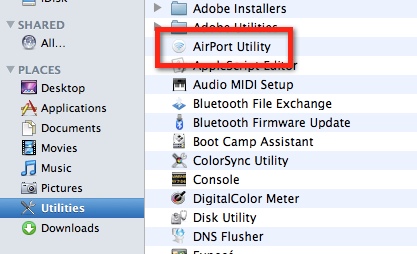
Next open your AirPort Utility. It's in the Utilities folder in the Applications folder.

2010-11-16_17-45-43

The AirPort Utility will open and your AirPort Extreme should be listed. If it's not highlighted (maybe you have more than one WiFi gadget), then click it, then click the Manual Setup button.

2010-11-16_17-46-49

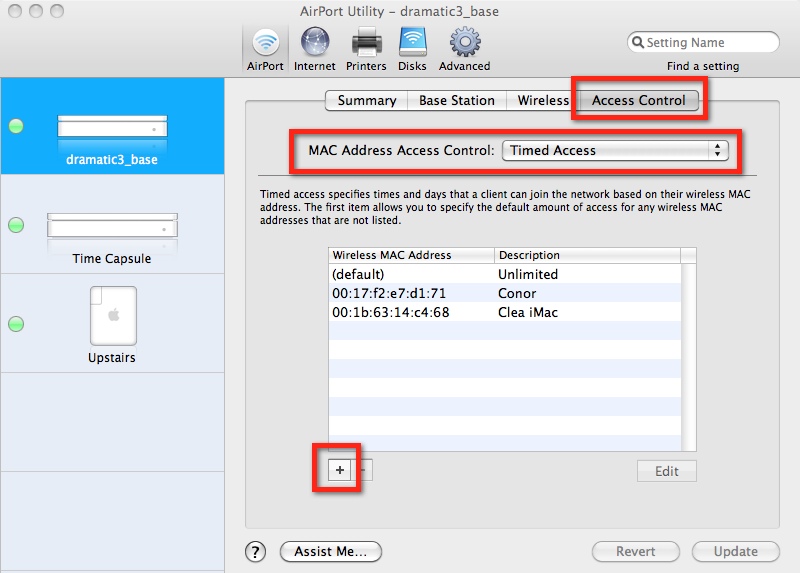
Your Extreme settings should load and display. Click the Access Control tab at the top right. The window will display your MAC Address Access Control page.

Set the Control to Timed Access. You should have a (default) entry called Unlimited. This means that if you don't set anything else up, everyone on your WiFi network can access the internet all the time.

2010-11-16_17-47-45

Click the + button to add a new entry to the list. Enter the Mac address of the computer you want to restrict access for. Enter a description, then set the days and times as you wish. You can have more than one entry. For example, you might want to give the kids internet access until 9pm on school days, but 11pm on the weekends.

2010-11-16_17-49-02

When you are finished click the Done button to close the Access window, then cick Update. The settings will be saved to the Extreme box, which will then restart, so you'll need to wait a minute or two for everything to start working again.

The only thing left is to test – which is easy. Just wait until the magic time you've designated the internet access to cease, and see how loudly your kids yell!